Accessible with bit.ly/frozen-soft and thanks for visiting | Please don't skip onto the direct link, whereupon use the ADF.LY/J.GS links, that really helps and means a lot to me | If you're using Chrome Browser, you can type frozen-soft.blogspot.com then press SPACE to search


You're on: Windows 8
Showing posts with label Windows 8. Show all posts

Thursday, June 11, 2015

Tips on how to make your Windows 8/8.1 goes fast as Windows 7

As you know that Windows 8 and 8.1 got a loathe of bad critics from many users that comes from Windows 7. There are lots of changes there, and the one that is really obvious is the start screen. In the earlier Windows, we can easily access programs and run a command easily from a smaller but faster start menu. But since then, Microsoft suddenly decided that Start Screen will be loved by many users, because they loved it (What kind of business strategy is this?). Hey Microsoft, you're not the only users there. Of course, not all users will love this significant change.

There are of course, a lot of another new stuffs in Windows 8/8.1 that you won't see on Windows 7. But all these changes just suddenly make a wonky performance.

And here, I'll now help you as Windows 8/8.1 users, to improve it further. There are includes disabling unnecessary eye candy effects such as shadows, animations, etc. Also you'll be able to disable unwanted programs and services which start automatically with Windows.
 

So, check out these nice tweaks:
REGISTRY TWEAKS  
Make sure you know what you're doing, backup your registry first before doing this. 
1. Copy this code to notepad and save it as [FILENAME].reg
2. Run [FILENAME].reg and confirm.
 
SHADOWS & ANIMATIONS
1. Press WIN+S and type sysdm.cpl, press Enter
       Choose Yes on UAC Prompt if any
2. Go to Advanced, and click Settings under Performance
3. Select Adjust for best performance if you don't want any animations. But you can choose Custom and select that suits to you.

DISABLING AUTOSTART SERVICES
1. Press WIN+S and type in services, select View local services.

2. Open these each items and select Startup Type to Disabled
  • Diagnostic Policy Service
  • Distributed Link Tracking Client
  • IP Helper
  • Program Compatibility Assistant Service
  • Portable Device Enumerator Service
  • Remote Registry
  • Secondary Logon
  • Security Center
  • TCP/IP NetBIOS Helper
  • Windows Error Reporting Service
  • Windows Image Acquisition (WIA)
DISABLE STARTUP PROGRAMS
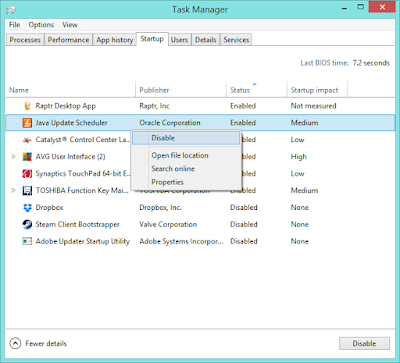
1. In Windows 8/8.1, startup options has been moved to the Task Manager, so open it by right-clicking taskbar and select Task Manager, or you can do it so by pressing and holding Ctrl+Shift+Esc 

2. Now at your Task Manager, select the program that you may rarely use, and click Disable button, or you can do it so by right-clicking the program and select Disable
Note that you can re-enable the disabled program again vice versa

REBUILD INDEX SETTINGS
From time to time, your Windows 8/8.1 search charm will feels sluggish and slower than before as if you use it very often. And I just found this problem on which Windows 8/8.1 have a different indexing system compared to the previous Windows. Rebuilding the index can temporarily solves the problem.

1. Now press WIN+S 
(If your search charm feels very very slow, you may want to press WIN+C > Settings > Control Panel. In the Control Panel Window, type in index in the search box and click Indexing Options)
2. "Indexing Options" Window will appear, and now click Advanced
3. In the Troubleshooting section, press Rebuild and click OK

Don't worry this is just to rebuild the index settings, it may take some time, but you can close the window while the process is still running. Click OK then click Close
 
UPDATE ONLY WHAT YOU NEED
Windows Update will tell you that Automatic Update is really important, but the fact is, is not 100% important at all. After your Windows had finished the installation, suddenly your Windows feels sluggish and a bit slowing down. And that is what happens to me.
In many case, it is better to choose the third option from the picture above "Check for updates but let me choose whether to download and install them". And the next step, you need to install the latest version of Secunia PSI, and it is fully free (Check out this beautiful software).
With this, you can check everything about the updates, but only the thing that is critical for your Windows.
And what you see from above, is Secunia PSI 2.0, but what is the main difference with the version 3.0?
From the looks, it is absolutely different, such as dashboard & scan results, but 2.0 is really a good tool for those who wants to keep in track with the details of the updates available for your computer.
In 3.0, indeed you can see the available updates, just like in 2.0, but you can't do it manually. Well, it all depends on your choice though.
Secunia PSI 2.0                           Secunia PSI 3.0
PSI 2.0     PSI 3.0

ADDITIONAL TIPS
  • Install only necessary software, don't force it to take too many software installed. (And surely to install the original version, patch or crack is mostly the answer on why your Windows is slowing down)
  • Use a good antivirus and keep it updated (Remember, original version)
  • (Check out this post)
  • Use a virtual machine to test any kind of suspicious software.
  • You can install Operating Systems as many as you want, but it is recommended to install no more than 3 OSes. Be sure that if you really use all of them, everytime.

Posted By Unknown 6/11/2015

Wednesday, January 14, 2015

Colorful Windows 8 Wallpaper Theme Pack

Want a windows 8 sleek and minimalist wallpaper style but didn't know where to find at, well you are now in the right page.

I'd like to remind you, that these wallpaper packs are made from only one wallpaper from YouTube user (I'd forgot that) with the link provided and re-edited with photoshop

Nah, no need to wait longer. Wallpapers included:
 

[DROPBOX - 435 KB]
 http://adf.ly/wEotA


Or if you prefer Windows 7/8/8.1/10 Theme Pack file, here it is
WINDOWS 7
[DROPBOX - 231.77 KB]
http://adf.ly/wEpOB

WINDOWS 8/8.1/10
[DROPBOX - 231.77 KB] 
 http://adf.ly/wEpFN

Posted By Unknown 1/14/2015

Saturday, July 26, 2014

Windows 9 Skin Pack


WINDOWS 9 SKINPACK ON WINDOWS 7

WINDOWS 9 SKINPACK ON WINDOWS 8
NOTE
You need to copy theme in C:\Windows\Resources\Themes
For using this theme first you need to Patch Uxtheme


PROGRAMS
MetroSidebar 0.2.1 beta by Amine Dries

ImmersiveExplorer 1.0.2 by julien malici

CHANGELOG
Version 2.0
  • Added both of Win8 and Win7 installer in one installer
  • Added last version of uxstyle
  • Added theme resource changer
  • Change logon screen with registry
  • Change icons and theme without restart system
  • Enable aero in windows basic
  • Updated icons and styles
  • Fixed bugs and problems
  • Remove riscky files
  • Added both of X86 and X64 installer in one installer
Version 1.0
-Initial release

Skin Packs installer have easy and safe install option , Please unistall old or other version of skin packs and restart your OS before install new one

DOWNLOAD
UxTheme Patcher 4.0      OR     UltraUXTheme Patcher
                                            
WINDOWS 9 SKINPACK
for Win 7/8/8.1

Posted By Unknown 7/26/2014

iOS 8 Skin Pack


iOS8 ON WINDOWS 7

iOS 8 ON WINDOWS 8
NOTE
You need to copy theme in C:\Windows\Resources\Themes
For using this theme first you need to Patch Uxtheme

PROGRAMS
RocketDock 1.3.5 by Punk Labs
Xwidget 1.5 & XLaunchPad 1.0.7 by Xwidgetsoft

CHANGELOG
Version 1.0
-Initial release


Skin Packs installer have easy and safe install option , Please unistall old or other version of skin packs and restart your OS before install new one

DOWNLOAD
UxTheme Patcher 4.0      OR     UltraUXTheme Patcher
                                            
iOS 8
for Win 7/8/8.1

Posted By Unknown 7/26/2014

MAC OS X Yosemite Skin Pack

NOTE
You need to copy theme in C:\Windows\Resources\Themes
For using this theme first you need to Patch Uxtheme

DOWNLOAD
UxTheme Patcher 4.0      OR     UltraUXTheme Patcher
                                            
MAC OS X YOSEMITE
for Win 7

for Win 8/8.1

Posted By Unknown 7/26/2014

Android KitKat Skin Pack


KITKAT ON WINDOWS 7

KITKAT ON WINDOWS 8
NOTE
You need to copy theme in C:\Windows\Resources\Themes
For using this theme first you need to Patch Uxtheme


PROGRAMS
RocketDock 1.3.5 by Punk Labs
Xwidget 1.5 by Xwidgetsoft

CHANGELOG
Version 2.0
  • Added both of Win8 and Win7 installer in one installer
  • Added last version of uxstyle
  • Added theme resource changer
  • Change logon screen with registry
  • Change icons and theme without restart system
  • Enable aero in windows basic
  • Updated icons and styles
  • Fixed bugs and problems
  • Remove riscky files
  • Added both of X86 and X64 installer in one installer
Version 1.0
-Initial release


Skin Packs installer have easy and safe install option , Please unistall old or other version of skin packs and restart your OS before install new one

DOWNLOAD
UxTheme Patcher 4.0      OR     UltraUXTheme Patcher
                                            
ANDROID KITKAT
for Win 7/8/8.1

Posted By Unknown 7/26/2014

Green Skin Pack

NOTE
You need to copy theme in C:\Windows\Resources\Themes
For using this theme first you need to Patch Uxtheme

DOWNLOAD
UxTheme Patcher 4.0      OR     UltraUXTheme Patcher
                                            
GREEN
for Win 8/8.1

Posted By Unknown 7/26/2014

Jarvis Skin Pack

NOTE
You need to copy theme in C:\Windows\Resources\Themes
For using this theme first you need to Patch Uxtheme

DOWNLOAD
UxTheme Patcher 4.0      OR     UltraUXTheme Patcher
                                            
JARVIS
for Win 8/8.1

Posted By Unknown 7/26/2014

 
Claim Free Satoshis Now!